
Quad Cities Campus
Quad Cities Complex 1212
How To's
Turn on the System
Touch the AMX Control Screen
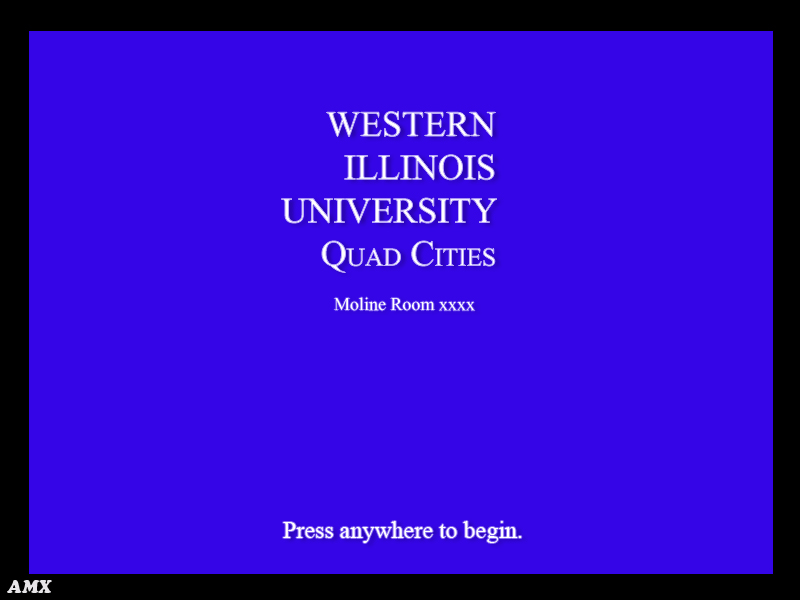
You will see the landing page:
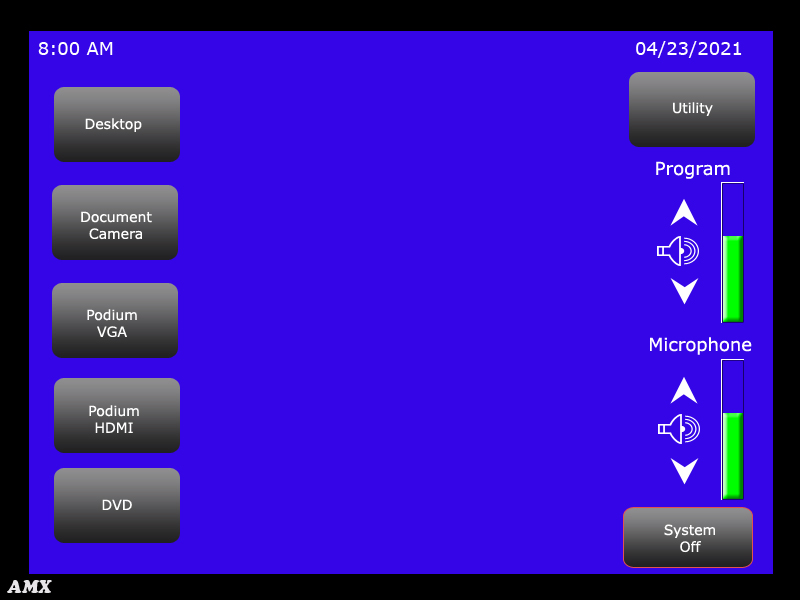
AMX Control Screen may appear off when you enter the room. Touch screen to wake up panel.
Lower Projection Screen
Projection screen will lower automatically when a device is selected.
1) Select a device:
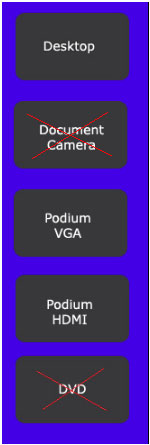
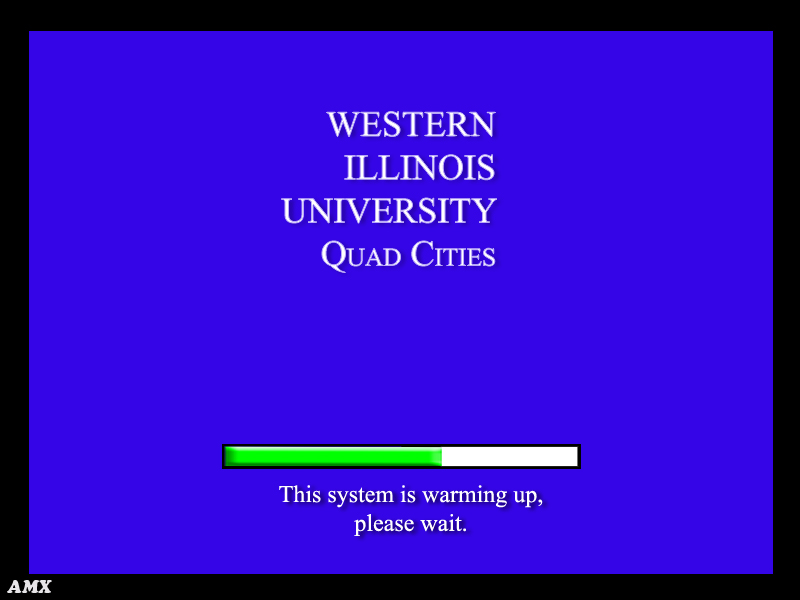
2) System will warm up:
View Podium Computer
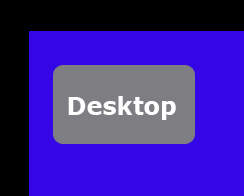
Touch the Desktop button:
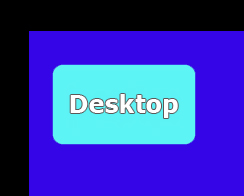
Button will change to light blue:
View Document Camera (NOT Zoom)
There is not a document camera available in this room.
View DVD on Screen
Use Podium Computer's VLC Application.
Click on the VLC icon.

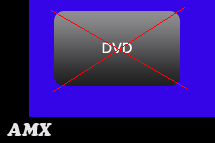
Do not use the DVD button on the AMX Control Screen.
View Laptop (VGA)
Touch Podium VGA button

Button will change to light blue

View Laptop (HDMI)
Touch Podium HDMI button

Button will change to light blue

Adjust Volume
Always use the volume control on the podium computer to adjust volume.

Power off the System
Touch System Off button:
Blank Screen (video mute)
Touch Utility button at the top of AMX Control Screen:

Touch Video Mute button:

Be sure to turn off Video Mute when finished.
Make a Zoom Call
Students, Faculty and Staff:
Go to https://wiu.zoom.us/
Login with your ECom credentials.

For Guests
Option 1:
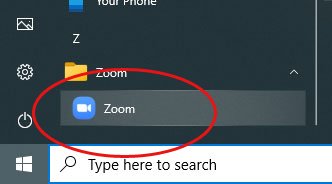
On the desktop computer, open the Zoom application located under Programs:
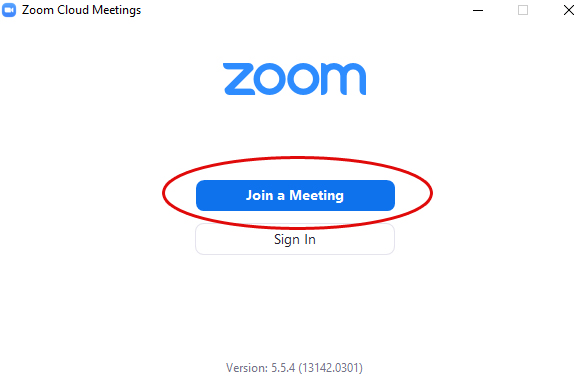
Select Join a Meeting and enter the meeting ID:
Option 2:
On the desktop computer, open the Zoom application located under Programs:
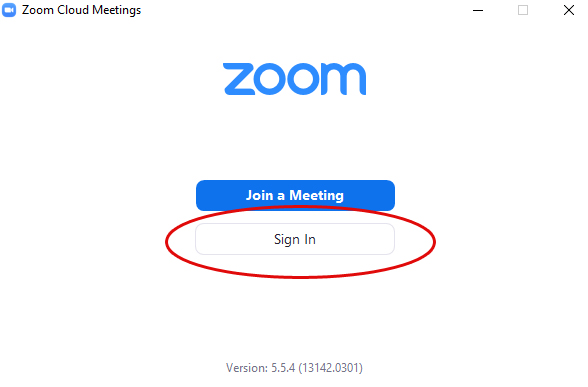
Select Sign In and pick sign in option:
Adjusting Cameras in Zoom
Use the black Aver remote.
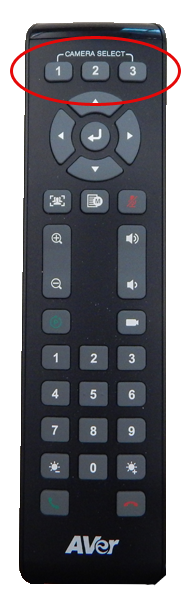
Select the camera you want to adjust:
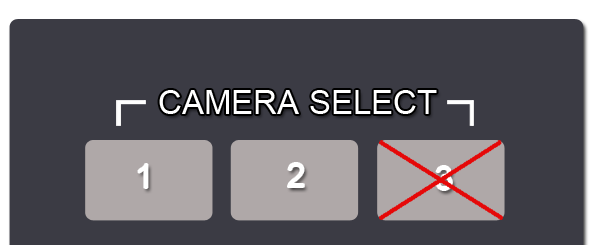
Switching between camera 1 and 2 on the remote ONLY switches the camera you want to control.
It does not switch the sending camera.
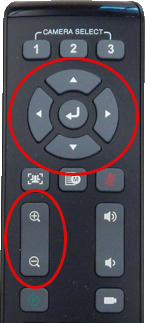
- Left/Right arrows to pan
- Up/Down arrows to tilt
- Plus/Minus button to zoom
Showing Document Camera (ELMO) in Zoom
There is not a document camera available in this room.
Contact Tech Support
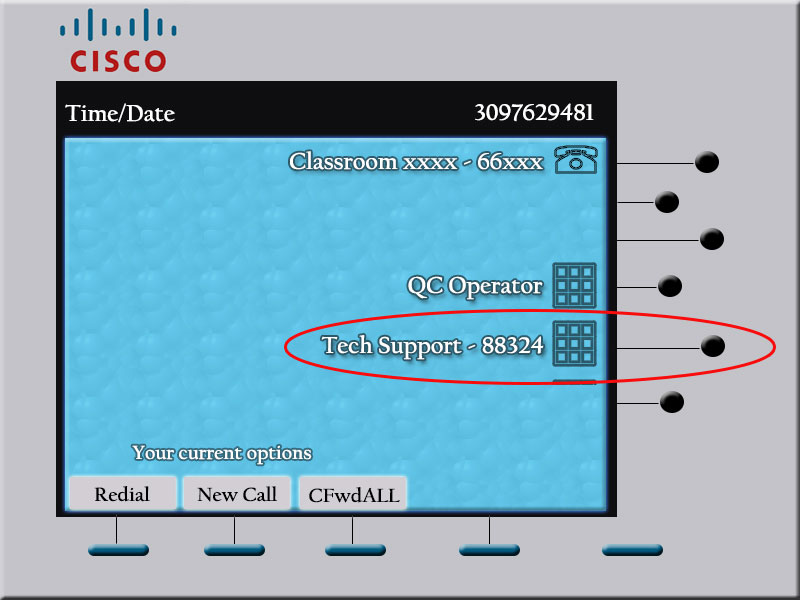
- Tech Support speed dial on in-room telephone
- Dial 88324 from on campus
- Dial 309-298-8324 from a cell phone
Troubleshooting
Computer screen is blank.
1) Check to see if power to the monitor is on.
2) Move the mouse. Computer may be in sleep mode.
Mouse is missing.
Check the Document Camera drawer. Sometimes the mouse is pulled from the tray and falls into the Document Camera drawer.
I do not see the computer icons on the projection screen.
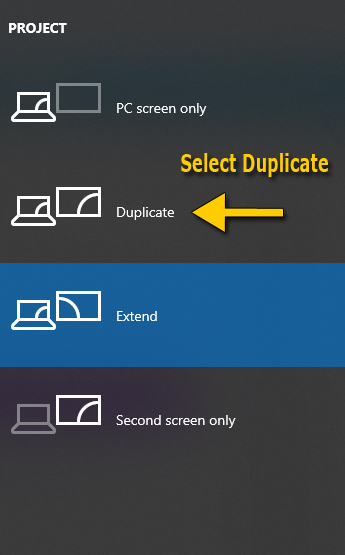
Computer screen is extended instead of duplicated.
1) Select the windows button and P key
2) Select Duplicate
The volume bar is at max and I still can't hear any sound.
If you are using the podium computer, check to make sure it is not muted.
The lights are too bright and wash out the projection screen.
For optium viewing of the projection screen, turn off the projection lights.
I hear feedback/noise.
Check to make sure the microphone sound is muted on the AMX Control Screen. Touch the sound icon to mute.
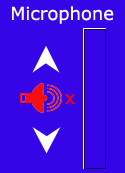
There is not a podium microphone in the room. Having the microphone on increases feedback.
I'm sending the wrong camera in Zoom.
There are 2 ways to send a camera in Zoom:
1) Select the camera you want to use within Zoom by selecting the ^ that is right next to the stop VIDEO selection box
2) Press ALT + N
You cannot change the sending camera using the black Aver remote.
While using Zoom, sound is coming out of wrong speakers.
If the sound is coming out of the round, black speakers, switch audio to use the Realtek(R) audio in the bottom left of the zoom window (the ^ next to MUTE)
Connect with us: