
University Technology
Multi-Factor Authentication at WIU
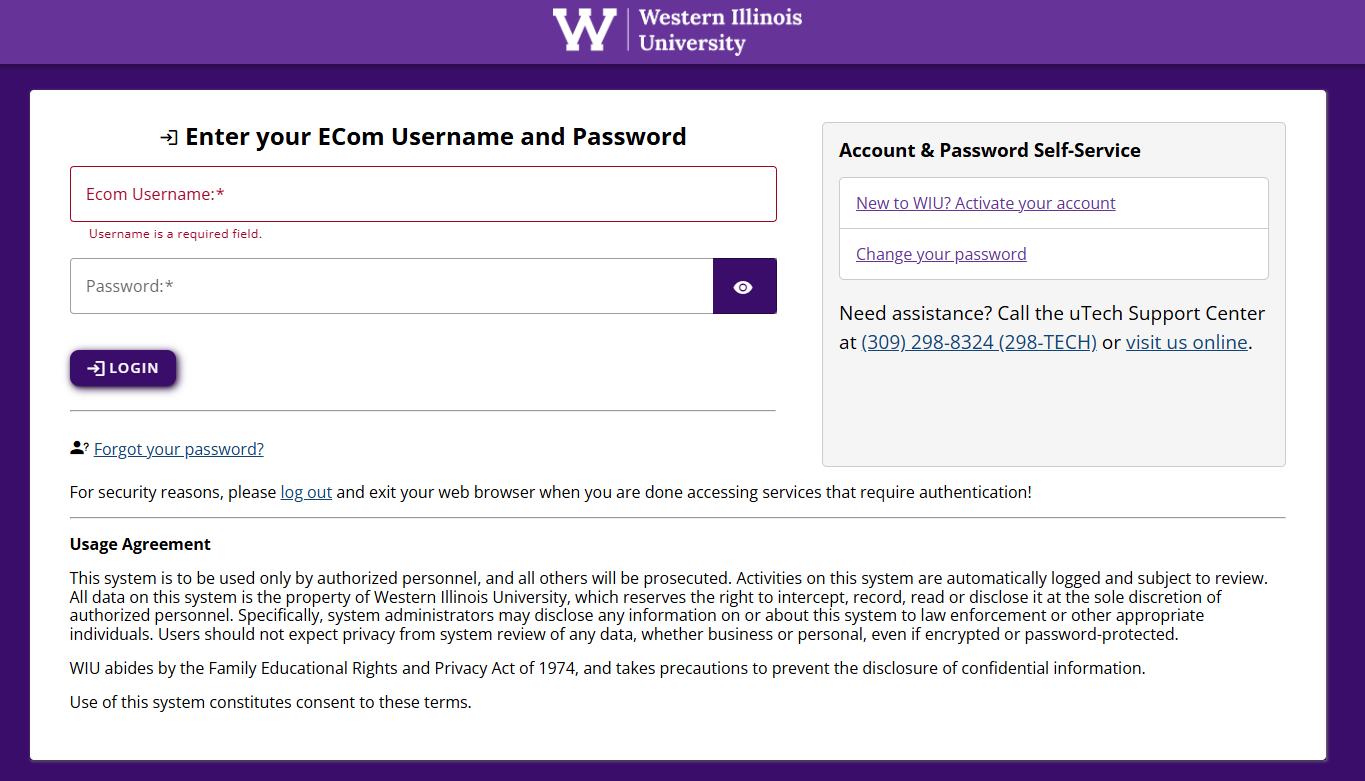
New central sign-on login page look and feel when accessing Google services using your WIU login credentials. You will continue to see the old layout when logging into non-Google services for the time being.
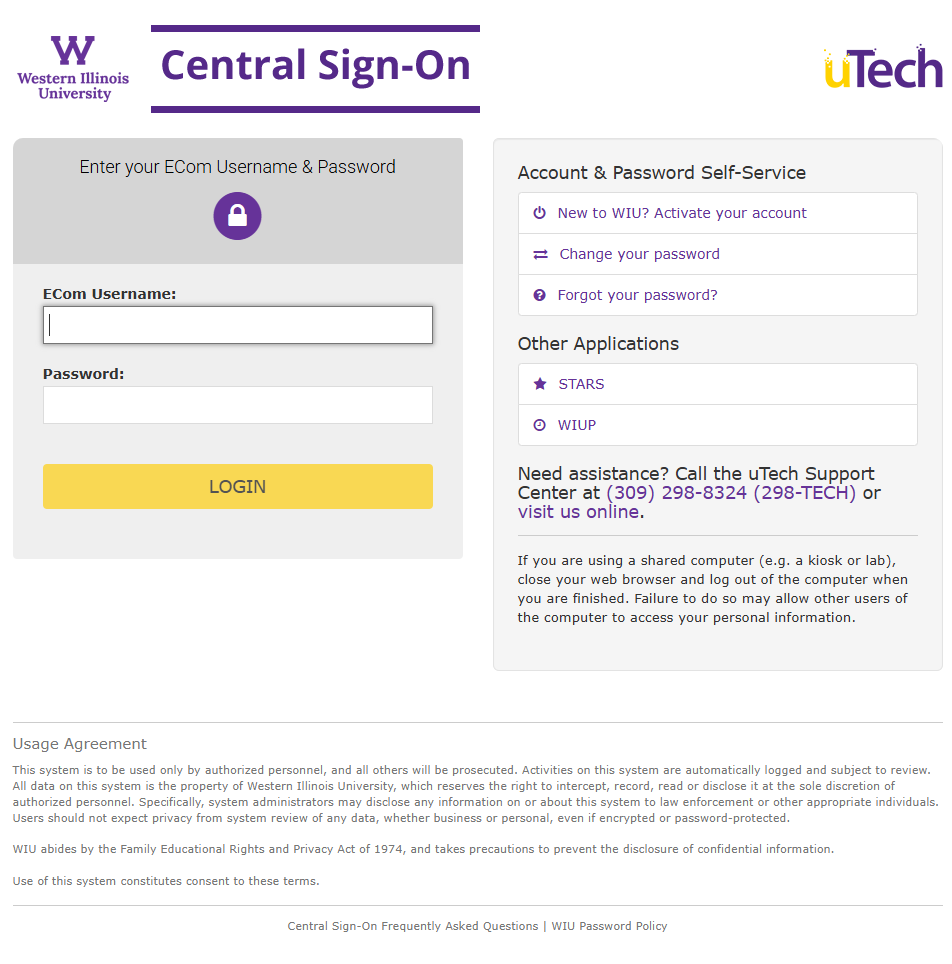
A new version of our Central Sign On login page was rolled out on Tuesday, September 23 as part of our ongoing efforts to improve security and protect university systems and data.
This new login interface will initially be available only when accessing Google services such as Gmail, Google Calendar, and Google Drive. If you're logging into services like WesternOnline or Zoom, you will continue to see the current Central Sign On interface for now.
What’s Changed?
- When signing in to Google services, you’ll see a redesigned login page.
- If you are off campus (or using the public WIU-OPEN wireless network) and logging into Google services, you will now be required to use Multi-Factor Authentication (MFA).
Why MFA?
Requiring MFA when accessing email from off campus is an important security enhancement that helps protect your account from unauthorized access. This aligns with industry best practices and supports our ongoing efforts to safeguard university systems and data.
To use MFA, you will need to install and use an authenticator app on a secondary device such as a smartphone or tablet. The app generates time-sensitive verification codes that you will enter when signing in, providing an additional layer of protection beyond your password. We recommend Google Authenticator, which is free and easy to set up, though other compatible authenticator apps may also be used.
Video Walkthrough
Frequently Asked Questions
Q: I don’t have a second device to use for MFA. What options do I have?
A: In addition to smartphones, you can use an iPad, Kindle Fire, or Android tablet as your second device for MFA. Affordable Android devices are available at many retailers for under $50. University Technology has also tested Token2 fobs (the Token2 miniOTP-2-i model, currently available on Amazon). Individuals or departments can purchase these items and set them up following these instructions. Note that these fobs require an iOS or Android device to initially set up - if you need assistance with setup, please contact our Support Center at (309) 298-TECH.
Q: Can I receive a text message or a phone call with my code instead of using an app?
A: In December 2024, the FBI and the Cybersecurity and Infrastructure Security Agency (CISA) advised against using SMS codes for multi-factor authentication (you can read more here). Additionally, CISA has noted that threat actors have used multiple methods to exploit MFA codes sent via voice to a phone (you can read more here). As a result, many platforms have begun phasing out these options. To align with these best practices, receiving MFA tokens via text/voice message will not be available at Western.
Q: Is Google Authenticator required, or can I use a different authenticator app?
A: University Technology recommends and provides support for Google Authenticator, which is free, widely used, and easy to set up. However, you may also use other compatible authenticator apps such as Microsoft Authenticator, Authy, 1Password, LastPass Authenticator, or similar time-based one-time passcode (TOTP) apps.
Please note that while these apps generally work the same way and should function with our system, University Technology can only offer limited troubleshooting support if you choose to use something other than Google Authenticator.
Q: I am a retiree and/or alumni with access to a WIU email account. Do these requirements apply to me?
A: These requirements apply to all individuals with access to university-owned systems. This includes employees, students, retirees, alumni and others with access to a WIU-owned email account.
Q: Will I be required to use MFA to reach Google resources if I'm off-campus but connected to WIU's VPN?
A: No. If you are at an off-campus location but connected using WIU's VPN (available to WIU employees), an additional MFA to reach Google resources is not required.
Q: If I use MFA to access my email off campus, will I still need to log in again to other services through Central Sign-On?
A: For now, yes. During this initial phase, logging into Gmail will not automatically grant access to other services like Western Online or Zoom. This is temporary; over time, all services will move to the new Central Sign-On platform, allowing you to log in once and access multiple services seamlessly.
Q: How often will I need to MFA?
A: When logging in through a standard browser, you will need to provide your MFA token every 14 days (per device) or if you manually log out of a system.
Note: if you access Google apps on your smartphone, these apps use a long-lived secure token stored on your phone. Unless the token is revoked, expired, or suspicious activity is detected, you won't be asked to MFA after your initial setup.
Q: After I've set up my MFA, how do I use it?
A: If you have already set up your MFA (using these instructions), using it to log in when off campus (or connected to WIU-OPEN) is relatively straightforward. Simply open the Google Authenticator app on your device and enter the 6-digit token when prompted. Complete instructions (with screenshots) on how to use MFA can be found here.
Q: How do I transfer my Google Authenticator codes to a new phone or device?
A: If you sign in to Google Authenticator with a personal Gmail account, your codes will sync automatically and appear on any new device when you sign in. This makes upgrading phones simple and requires no manual transfer.
Important: Do NOT sign in to Google Authenticator using your WIU account. If your WIU account is ever locked or disabled, you could lose access to all authenticator tokens. Always use a personal Google account only for Authenticator.
If you are not signed in with a personal Google account in Google Authenticator, follow these steps to manually transfer your codes:
1. Prepare both devices
- Install Google Authenticator on your new phone.
- Make sure you still have access to your old phone where the codes currently live.
2. On your old phone
- Open Google Authenticator.
- Tap the menu (three dots).
- Select Transfer accounts → Export accounts.
- Choose the accounts you want to move.
- A QR code (or multiple codes) will appear.
3. On your new phone
- Open Google Authenticator.
- Tap Get Started or open the menu.
- Select Transfer accounts → Import accounts.
- Choose Scan QR code.
- Use your new phone to scan the QR code displayed on the old phone.
- Your codes will import immediately.
If you are unable to transfer your codes to a new device, you must call the uTech Support Center at (309) 298-TECH during regular business hours. After verifying your identity, we can reset your account so that you can re-set up MFA on your new device.
Q: I've tried reading the instructions and FAQs but I need help setting up MFA. What do I do?
A: If you are having trouble with MFA, please call us at (309) 298-TECH. We are available during regular business hours (Monday–Friday, 7:30am–4:30pm). Because MFA involves your account security, we require a phone call rather than email to verify your identity and resolve the issue safely.
Connect with uTech: